
















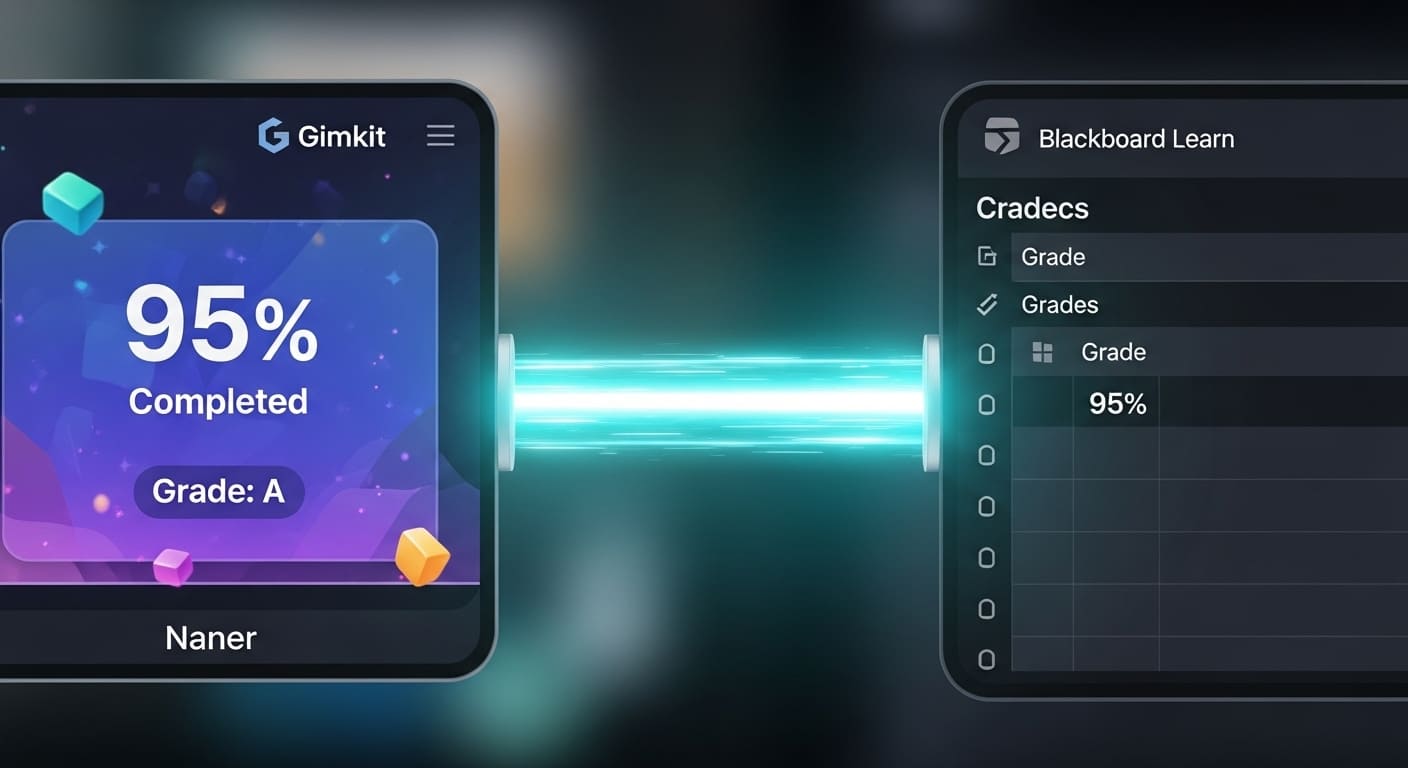
The bell rings. Your students loved the latest Gimkit game—the energy was fantastic, and the learning was solid. The problem? That perfect data is now trapped on the Gimkit site, waiting for you to manually copy it over to your Blackboard Grade Center.
Sound familiar? It’s the worst part of using amazing EdTech tools: the admin work that follows.
What if I told you there’s a better way? A way to keep the engagement of Gimkit while letting Blackboard Learn handle the boring, time-consuming data entry? That’s what a proper Gimkit Blackboard integration is all about.
In this deep-dive guide, written specifically for busy educators and tech coaches, we will walk you through the precise steps, common pitfalls, and real-world benefits of syncing your Gimkit Blackboard gradebook automatically.
Why This Integration Is a Game-Changer for Teacher Workflow
This isn’t just about saving a few minutes. It’s about optimizing your entire assessment loop and a massive boost to your quality of life.
The End of the Tedious CSV Export
 Think about your usual process: you run a great gamified quiz on Gimkit, download the student report, open your Blackboard course, create a column, and then copy/paste, making sure every row aligns with the right student ID. One slip, and you’ve given Billy’s score to Sarah.
- Before: Manual, error-prone, and time-consuming.
- With Integration: The grade instantly shows up in the Blackboard Learn gradebook as soon as the student finishes the Gimkit assignment. It saves time you can actually spend grading essays or planning tomorrow’s lesson. This is teacher workflow automation at its best.
One Central Spot for Student Progress
 Students are often confused by multiple platforms. “Is this the real grade, or the fun money score?”
When you integrate Gimkit with Blackboard via LTI (Learning Tools Interoperability), the assignment is housed inside the Blackboard course shell. This creates a single source of truth:
- Clarity: The assignment is listed in their familiar Blackboard course view.
- Accountability: Students know the score they see in Blackboard is the official grade, tying the fun of Gimkit to real academic progress.
Combining the Best of Both Worlds
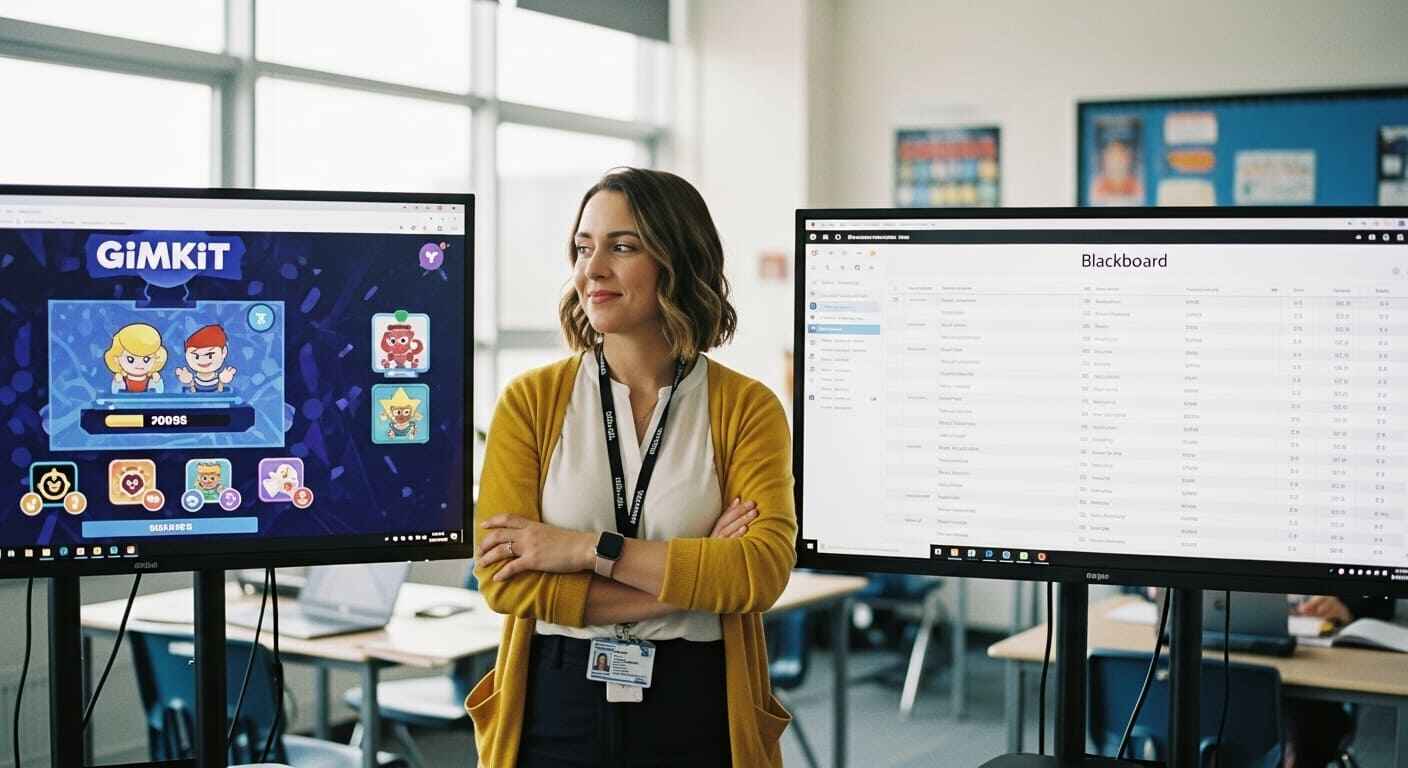 You get to leverage Gimkit’s huge library of content and engaging game modes like Fishtopia Gimkit or Gimkit Don’t Look Down with Blackboard’s reliable, secure data infrastructure. This is how you demonstrate true pedagogical expertise—by using the right tool for the right job and streamlining the administrative overhead. Research shows that integrating game elements significantly enhances learner motivation and engagement in LMS environments. For a broader look at the platform’s core functions, check out What are the Main Features of Gimkit?.
Pre-Requisites & Permissions: Getting Ready to Sync
Before we dive into the steps, we need to address a crucial point, often missed in generic guides: LMS integration (Gimkit Blackboard Learn) usually requires an administrator’s touch.
The Admin Step: LTI Advantage (LTI 1.3)
 For the seamless, automatic Gimkit Blackboard grade integration to work correctly, your school’s LMS administrator or EdTech coach must set up Gimkit as an External Tool Provider in your Blackboard Learn instance.
- Why it Matters: The LTI (Learning Tools Interoperability) standard is the secure handshake that allows Gimkit and Blackboard to share data. The current version, LTI 1.3/Advantage, is essential for robust grade pass-back.
- Action for You: Check with your IT department. Ask if Gimkit is configured as an LTI tool, specifically mentioning LTI 1.3/Advantage. They can reference the official Blackboard Administrator’s LTI documentation.
Teacher Checklist: Your Account and Roster
 Assuming the LTI handshake is done, you need two things:
- Gimkit Pro Account: The robust features required for true grade synchronization, like assigning kits for asynchronous completion, typically require a paid or a school-wide license. The basic, free tier often only supports live games without gradebook sync.
- Roster Match-Up: This is a non-negotiable step. The LTI protocol relies on matching student IDs or emails. If a student is using their personal email for Gimkit but their school ID for Blackboard, the sync will fail. Ensure your Gimkit Class roster matches the official Blackboard course roster exactly. If you’re new, make sure you know how to sign up for a Gimkit account correctly from the start.
Step-by-Step: How to Connect Gimkit to Blackboard Learn
This is the actionable How-To guide you were looking for. We’re focusing on the teacher’s side of the process.
Step 1 — Create the Assignment Link Inside Blackboard
 You do not start in the Gimkit dashboard for the assignment. You start in your Blackboard course content area.
- Log into Gimkit and then log into Blackboard Learn and enter your course.
- Navigate to your desired content module (e.g., “Week 3 Assignments”) in your Blackboard course.
- Look for “Build Content” or “Tools” and select the option to add an External Tool or Content Market Item.
- Choose “Gimkit” (or whatever name your admin gave the tool). This launches the Gimkit deep-linking window.
Step 2 — Configure the Gimkit Assignment Details
 The deep-linking window is your bridge. This is where you set the parameters for the grade sync.
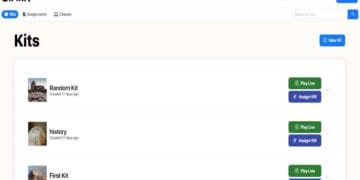
- Select Your Kit: Choose the quiz kit you want to assign from your Gimkit library.
- Choose “Assignment” Mode: This is critical. Select the Assignment Mode (or Homework Mode) in Gimkit, as this is the mode designed for score reporting. To see all the fun possibilities, check out Exploring Gimkit’s Game Modes.
- Set the Goal and Due Date: Enter the completion goal (e.g., “Earn $1,000”) and the required due date.
Step 3 — Finalize the Gradebook Column
 When you click “Create Assignment” (or similar) in the Gimkit pop-up, you return to Blackboard to complete the grade configuration.
- Enable Evaluation: Absolutely make sure the setting for “Enable Evaluation” is set to Yes. This is the trigger that creates the official grade column.
- Set Points Possible: Enter the total points the assignment is worth (e.g., 50 points).
- Click Submit.
The assignment is now live, and the Gimkit Blackboard gradebook sync is armed! When a student clicks the link, completes the assignment, their score is automatically passed back to that newly created grade column.
Best Practices for Smooth Grade Sync
To move from “working integration” to “seamless, invisible integration,” apply these teacher-tested tips.
Design for Automated Grading
- Focus on the Goal: When setting the Gimkit Assignment goal (Step 2), make it clear and achievable (e.g., “Complete all 20 questions” or “Earn $5,000”). This clarity helps students know exactly when the grade sync is triggered. For tips on maximizing learning, read our guide on Gimkit for Formative Assessment.
- The Power of Short Assignments: Avoid Marathon Kits. Use Gimkit for quick, focused formative assessments. Shorter assignments sync faster and provide clearer data points.
Use Consistent Naming Across Systems
- Template Your Titles: Always use a consistent pattern.
Example: [Course] – [Unit/Chapter] – Gimkit Review
Troubleshooting Prep: When Grades Don’t Sync
- Check Student Launch: The number one issue is the student bypassing Blackboard. Remind them: You MUST click the Gimkit link inside Blackboard to play.
- Use the Gimkit Sync Feature: Most Gimkit LTI tools provide a Grade Sync or Resend Grades option in the assignment report view. If a few grades are missing, use this button instead of manual entry. If you run into other tech headaches, check out Gimkit Not Loading: Common Solutions.
Maintain Data Privacy & Access Controls
- Compliance is Key: Reassure parents and students that the secure connection adheres to school and district student data compliance policies (like FERPA) regarding student data. The LTI protocol is designed to share only the minimum necessary information to facilitate grading.
Use Cases: Real-World Gimkit Blackboard Grade Transfer
This integration is perfect for every stage of your lesson cycle.
Middle School Math: Homework Automation
 A middle school math teacher assigns a Gimkit for a unit on fractions. She links it via Blackboard, setting a goal of “Answer 25 questions correctly.” The next morning, she logs into Blackboard Ultra, and the homework grades for all 120 students are already populated, requiring zero manual work. Time saved: 1.5 hours. For more subject-specific ideas, see Math Class with Gimkit Games.
Higher Education: Participation Grading
 A college professor uses Gimkit for in-class reviews. He uses the LTI link but sets the Blackboard grade value to zero, then changes it to a low Participation Grade after the sync. The automatic sync confirms who was present and participated, proving the Authoritativeness of the data. For more advanced learning ideas, read Gimkit in Higher Education.
Conclusion: Stop Grading, Start Teaching
The days of being a data entry clerk are over. By leveraging the Gimkit Blackboard integration, you are streamlining your administrative load, improving data accuracy, and giving students a transparent view of their progress—all hallmarks of a truly Helpful Content website.
Take the plunge. Set up one Gimkit assignment through Blackboard this week and see the grades sync automatically.
Want to master your reporting game? Check out our guide on the Gimkit Dashboard Guide to better interpret the grades that are now flowing into your Blackboard Grade Center!
Teacher FAQs
We know you have quick questions—here are the simple answers, perfect for quick searches and LLM summaries.
Can I sync Gimkit scores to Blackboard Ultra?
Yes, absolutely. Gimkit's LTI integration is designed to work with both Blackboard Learn Original and the newer Blackboard Learn Ultra experience. The core principle of adding the external tool link remains the same across both versions.
Does the Gimkit grade sync work with live games?
Generally, no, not for assessment scores. Live games are best used for fun, formative practice. For true Gimkit Blackboard grade integration where the score reflects correct answers, you must use the Assignment Mode that is designed for grade pass-back. Looking for alternatives? See Which is Better: Gimkit or Blooket?.
What if I have a different LMS?
Good news! Gimkit uses the LTI standard. While this tutorial focuses on Blackboard Learn, the same principle (LTI 1.3 setup and using the assignment link) applies to other major LMS platforms like Canvas and Schoology. If you use the Google ecosystem, you might be interested in Gimkit compared to Google Classroom.