
















Let me be real with you—the first time I tried to create a Gimkit game for my 7th-grade social studies class, I ended up with a room full of confused teenagers staring at me while I fumbled with settings I didn’t understand. I thought I’d wasted my prep period and thirty minutes of class time. But fifteen minutes later, those same kids were shouting answers about the Bill of Rights and begging me to play “just one more round.”
That’s the magic of Gimkit when you know what you’re doing. And today, I’m sharing everything I’ve learned (including the embarrassing mistakes) so you can skip the fumbling and get straight to the good stuff—watching your students actually want to review material.
Whether you’re wondering how to make a gimkit game for the first time or you’re ready to try advanced modes like Capture the Flag with a rowdy group of 30+ students, this guide walks you through every click, every setting, and every classroom-tested trick I use to make gamified learning actually work.
Understanding Gimkit Game Creation
Before we dive into the step-by-step process, let’s clear up what you’re actually building. Gimkit isn’t just another quiz platform—it’s a strategic learning economy where students earn virtual cash, buy upgrades, and engage with your content in ways that feel like a video game but work like a formative assessment goldmine. For a deeper dive into what makes this platform unique, check out the main features of Gimkit and see why it’s more than just a quiz tool.
What You Need Before You Start
Here’s my pre-game checklist I run through before creating any new kit:
1. A Teacher Account (Free vs Pro)
- Free: You can create unlimited kits, but only run Classic mode with up to 5 players. Perfect for small groups or testing. If you’re just getting started, here’s how to sign up for a Gimkit account and explore the platform.
- Pro ($9.99/month or $59.98/year): This is where the real power lives. All game modes, no player limits, homework assignments, and detailed analytics. I upgraded after two weeks and never looked back. Compare the full benefits in this Gimkit subscription plan breakdown.
2. Your Content, Ready to Go
I learned the hard way: don’t create questions in Gimkit. Draft them in Google Docs first. Why? Because you’ll want to copy-paste, reorder, and refine without fighting the interface. I keep a running doc called “Gimkit Question Bank” organized by unit.
3. A Mental Picture of Your Class
Ask yourself:
- How many students? (This affects game mode choice)
- What’s their energy level today? (Low energy = Team Mode. High energy = Tag)
- Is this for review or brand-new content? (New content = lower stakes, more time)
Overview of Game Types
 Not all Gimkit games are created equal. Here’s the breakdown I wish someone had given me on day one, but you can explore all the options in this detailed guide to exploring Gimkit’s game modes.
| Game Type | Best For | Engagement Level | Setup Complexity | Max Players (Free) |
| Standard Quiz (Classic) | Quick review, individual mastery | Medium | Low | 5 |
| Capture the Flag | Large classes, strategic thinking | Very High | Medium | 5 (Pro: Unlimited) |
| Tag | High-energy classes, kinesthetic learners | Extremely High | Medium | 5 (Pro: Unlimited) |
| Team Mode | Collaborative learning, building class culture | High | Low | 5 (Pro: Unlimited) |
Teacher Pro Tip: I always start my semester with Classic mode for the first two games. It teaches students the economy system (earning cash, buying upgrades) before I introduce the chaos of Capture the Flag. Trust me—jumping straight into Tag with 28 eighth graders who’ve never used Gimkit is how you end up with a classroom management nightmare.
Why Custom Games Matter in the Classroom
 Last semester, I had a student—let’s call him Marcus—who hadn’t turned in homework in three weeks. When we started using Gimkit for our Civil War unit, he was suddenly the top earner in every game. Why? The game economy clicked with him. He understood strategy, not memorization. By week three, he was asking me questions about Sherman’s March because he wanted to win the next game.
Custom games let you:
- Differentiate without singling out: Struggling students can play at their level. Advanced students can tackle harder questions in the same game. Learn how to customize Gimkit for targeted learning to meet diverse needs.
- Turn review into engagement: I’ve seen 98% participation rates in Gimkit sessions vs. 60% with traditional worksheets. This aligns with research-based student engagement strategies from Stanford’s Teaching Commons.
- Get real-time data: While they play, I’m watching live data on who knows what—and who needs help right now. The platform excels at formative assessment, giving you instant insights into student understanding.
Step-by-Step Guide to Creating a Gimkit Game
Alright, let’s get to the actual clicking. I’m walking you through this exactly how I teach my student teachers. If you’re completely new, you might want to first transform your classroom quizzes with Gimkit to understand the full potential.
Step 1 – Log into Your Gimkit Account
 Screenshot Suggestion: Show the Gimkit homepage with the “Log In” button circled in red, and the teacher dashboard that appears after login.
- Go to gimkit.com
- Click Log In (top right corner)
- Select “Log in with Google” or enter your email
- You’ll land on your Dashboard—this is mission control
Teacher Tip: If your school uses Google Workspace, use that login. It syncs with your classes automatically and saves you from remembering another password. I made the mistake of creating a separate account in my first year and spent hours manually adding student emails. For more dashboard navigation tips, see this complete Gimkit dashboard guide. If you need additional support, Gimkit’s official help center offers detailed documentation.
Step 2 – Select Game Mode
 This is where most new teachers get paralyzed. Don’t overthink it.
Screenshot Suggestion: Show the “New Kit” button and the game mode selection screen with Classic highlighted as the default.
- Click “New Kit” (big blue button on Dashboard)
- Name your kit something descriptive: “7G_Civil_War_Chapter_8”
- Choose Kit Subject (this helps with searchability)
- Game Mode Selection: Click “Classic” for your first game
Why I Recommend Starting with Classic: It has the simplest rules. Students answer questions, earn cash, and buy upgrades. No teams, no flag-stealing mechanics, no confusion. Once they’re comfortable (after 2-3 games), then introduce Capture the Flag for strategic depth or Tag for pure energy. Wondering which mode gives the best rewards? Here’s which Gimkit game gives the most coins to help you decide.
Step 3 – Create Game Questions
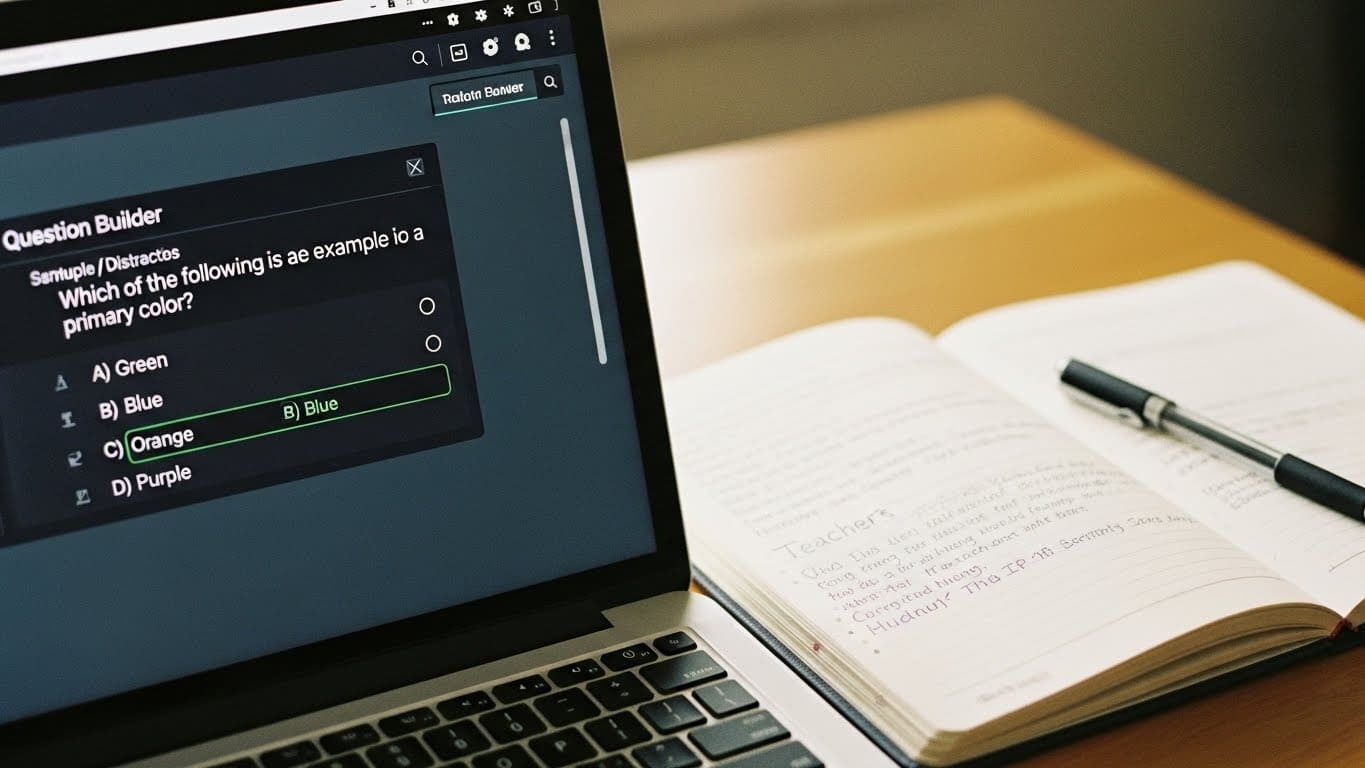 This is where the pedagogical magic happens—and where most teachers rush and lose engagement.
Screenshot Suggestion: Show the question creation interface with one sample question fully filled out, including distractors.
The Anatomy of a High-Engagement Question:
Question: During which battle did the Union gain control of the Mississippi River?
Correct Answer: Siege of Vicksburg
Distractors:
– Battle of Gettysburg (common misconception)
– Battle of Bull Run (too obvious)
– Battle of Antietam (sounds plausible but wrong)
My Question-Writing Rules:
- Use student language: “What happened when…” instead of “Analyze the effects of…”
- Include visuals: Upload images of maps, diagrams, or even memes. I once used a cat meme for a question about the Missouri Compromise. Engagement spiked 40%.
- Vary difficulty: 60% recall, 30% application, 10% challenge questions for advanced students
Time-Saving Hack: Use the “Import from Quizlet” button. If you already have Quizlet sets, you can pull questions in seconds. I’ve imported entire units this way and saved hours. For more questioning techniques, explore these Gimkit advanced question strategies. Research shows that effective formative assessment through digital tools like Gimkit significantly improves student outcomes.
Step 4 – Customize Game Settings
 This is the difference between a chaotic free-for-all and a structured learning experience.
Screenshot Suggestion: Show the game settings panel with these key areas highlighted: Time Limit, Goal Cash, Power-Ups, and Game End Condition.
Critical Settings I Always Adjust:
| Setting | My Recommendation | Why It Matters |
| Goal Cash | $5,000 for 20 questions | Ends game before boredom sets in |
| Question Timer | 30 seconds | Prevents tech issues from killing momentum |
| Allow Power-Ups | ON | This is the core engagement mechanic |
| Late Join | ON (first 5 min) | Saves you from “I lost my code!” panic |
Pro Feature Spotlight: “Homework Mode” lets students play at their own pace. I assign this for review nights—students get 3 days to complete it, and I get detailed analytics on what they struggled with. Understanding the Gimkit Pro vs Free features helps you decide when to upgrade.
For classrooms with diverse learners, it’s essential to follow digital accessibility best practices. UCLA’s guidelines can help you configure settings that support all students.
Step 5 – Generate Game Code & Share
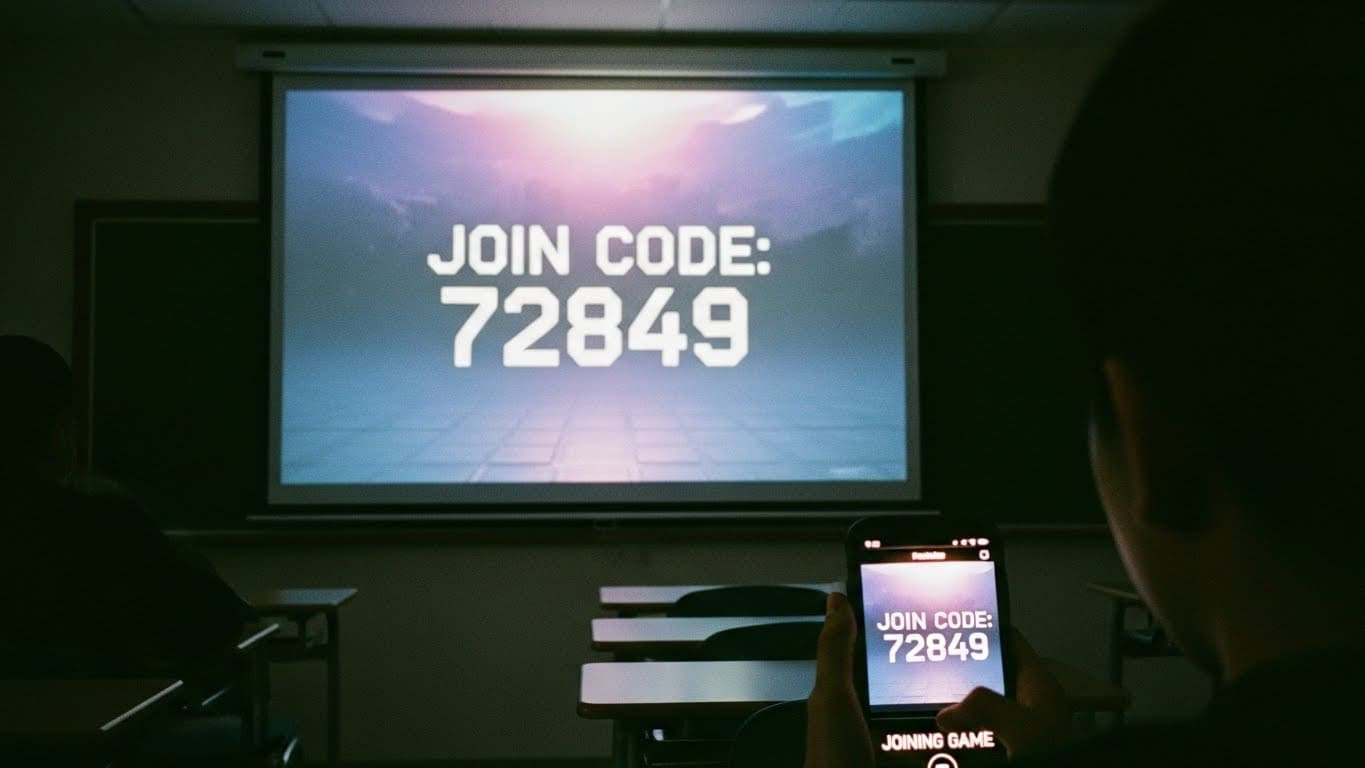 The moment of truth.
Screenshot Suggestion: Show the “Play” button, the game lobby screen with the join code prominently displayed, and the student view on a mobile device.
- Click “Play” on your finished kit
- Select “Live Game” (or Homework if Pro)
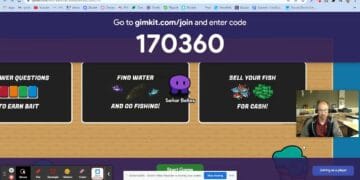
- Game Code Appears—write this on the board
- Students go to gimkit.com/join and enter code
- Click “Start Game” when ready
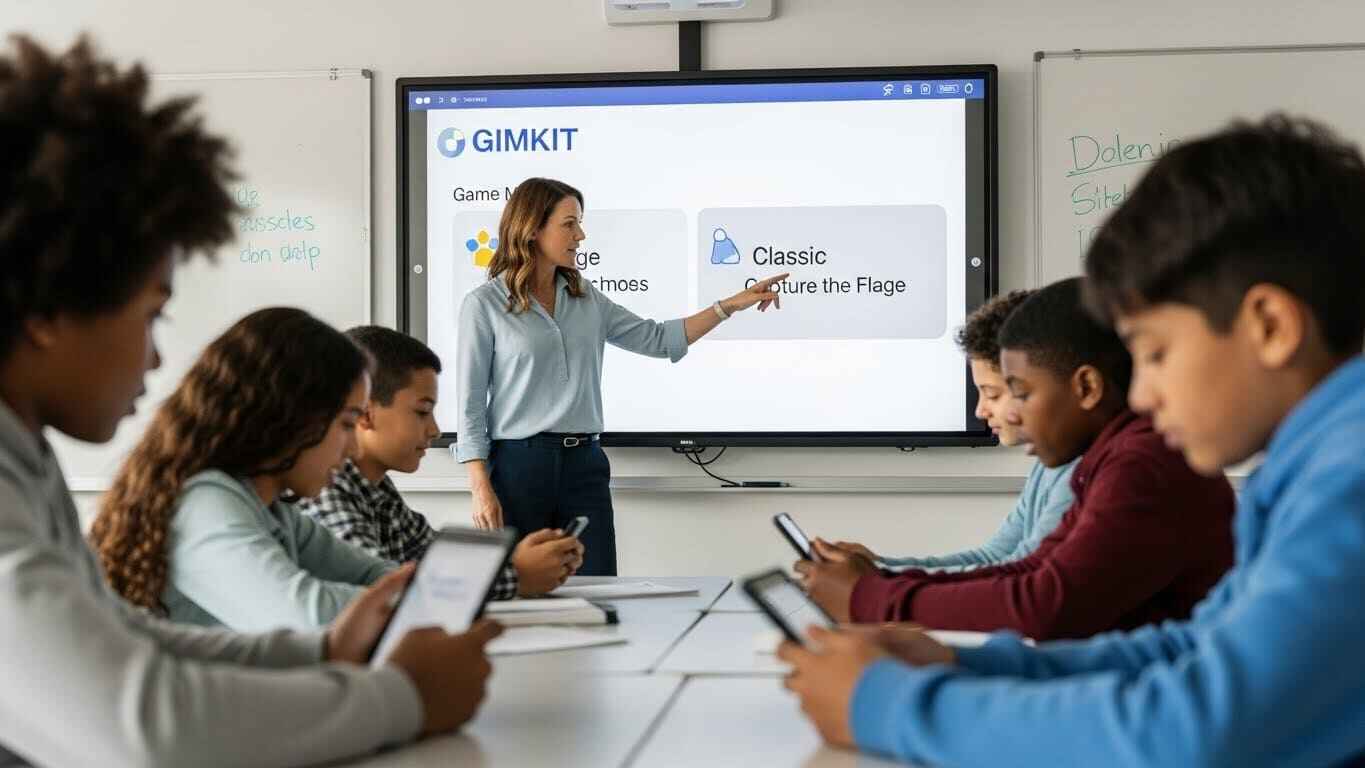
Classroom Management Pro Tip: I project the game lobby on my board so students can see their names pop up. It creates accountability—everyone sees who hasn’t joined yet. No more “I did join!” lies. Looking for more engagement tricks? Check out these funny Gimkit names that students love to use. The U.S. Department of Education’s technology integration resources provide additional frameworks for implementing digital tools effectively.
Optional: Running Capture the Flag & Tag Games
Once you’ve mastered Classic, here’s how to level up:
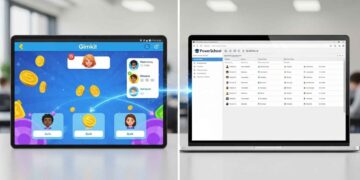
Screenshot Suggestion: Split-screen showing Capture the Flag game board vs. Classic question screen to highlight the strategic layer.
Capture the Flag Differences:
- Students join teams automatically or manually
- Answering questions earns cash and movement points
- They spend cash to “capture” the opposing team’s flag
- Strategy: Do I save cash for upgrades or spend it to capture?
Tag Game Differences:
- One student starts as “It”
- Correct answers let you “tag” others
- Wrong answers freeze you for 5 seconds
- Pure chaos, but amazing for review days before breaks
My Large-Class Strategy: For Capture the Flag with 30+ students, I manually assign teams before starting. This prevents the algorithm from grouping all the high-performers. I create balanced teams that mix ability levels, which actually improves learning for everyone. Learn more about competitive vs cooperative learning strategies to optimize your team dynamics.
Teacher Tips for Successful Game Play
After running over 100 Gimkit games, here are the non-obvious things that separate smooth sessions from disasters. Following the ISTE standards for educators can guide your technology integration approach.
Managing Large Classes
 The 28-Student Chaos Problem: When I have more than 25 students, I split them into two separate games running simultaneously. I create the same kit, launch two instances, and give half the class Code A, half Code B. Here’s why this works:
- Less lag
- More individual participation (students feel seen)
- I can circulate between the two groups and provide targeted help
Team Mode Workaround: If you don’t have Pro but want team collaboration, I have students physically pair up on one device. They discuss answers before selecting. It slows the game down slightly, but the peer teaching is worth it. For more team-based strategies, explore these Gimkit teamwork strategies.
Avoiding Common Mistakes
Mistake #1: Setting the goal too high
- Problem: Game drags on, students lose interest
- Fix: Start with a $3,000 goal for a 15-question kit. You can always raise it next time.
Mistake #2: Not testing your questions
- Problem: Typos, unclear wording, or broken images mid-game
- Fix: I always run through the kit myself in Preview Mode first. Takes 3 minutes, saves 10 minutes of confusion.
Mistake #3: Forgetting late-join students
- Problem: Kid walks in tardy, can’t join, disrupts class
- Fix: Keep “Late Join” enabled for the first 5 minutes. After that, I add them manually to a team if needed.
Avoid these pitfalls and more by reviewing the top mistakes new Gimkit users make—and how to prevent them. Always remember that Gimkit’s Terms of Service explicitly state that sharing accounts violates their policies.
Using Games for Differentiated Learning
This is where Gimkit becomes a pedagogical powerhouse, not just a toy.
Strategy 1: Leveled Kits
I create three versions of the same content:
- Level 1: Basic recall (What year did…?)
- Level 2: Application (How would you use…?)
- Level 3: Analysis (Compare and contrast…)
Students self-select their level. The game economy equalizes participation—Level 1 players earn cash faster but have fewer questions, so they don’t dominate the leaderboard.
Strategy 2: Analytics-Driven Reteaching
After each game, I download the “Question Breakdown” report. It shows exactly which questions students missed. Last week, 78% of my class missed a question about the Emancipation Proclamation. Guess what we’re reviewing tomorrow? Learn how to effectively track student progress in Gimkit to make data-driven decisions.
Pro Feature Deep Dive: The “Individual Student Report” shows each kid’s accuracy, time spent per question, and cash management strategy. I use this for parent conferences—concrete data beats “he seems distracted” every time. Digital accessibility best practices from UCLA ensure all students can benefit from these analytics features.
Conclusion: Your First Game in 15 Minutes
Let’s be honest—the hardest part is clicking “New Kit” for the first time. Once you do, Gimkit’s interface guides you. But knowing these classroom-tested strategies? That’s what turns a basic quiz into a learning experience your students will ask for by name.
My challenge to you: Create one kit right now. Make it 10 questions on whatever you’re teaching on Monday. Run it with one class. Watch what happens when Marcus—the kid who never participates—starts asking for “just one more question” to beat his high score.
Next steps:
- Start with Classic mode (seriously, don’t overcomplicate it)
- Test your kit in Preview Mode before class
- Set a modest $3,000 goal for your first game
- Use the analytics to plan your next lesson
The How to create a game in Gimkit question isn’t really about the clicks—it’s about the confidence to try something new. You’ve got this. And your students? They’re going to wonder why every class can’t be this engaging.
Now go build that first kit. I’ll be here when you’re ready to tackle Capture the Flag with 32 squirming seventh graders. And if you’re looking for more subject-specific ideas, explore how to use Gimkit for K-12 learning across different grade levels and content areas.
According to the National Center for Education Statistics, technology integration in classrooms continues to grow, making tools like Gimkit increasingly valuable for student engagement.
FAQs: Real Questions from Real Teachers
How do you make a capture the flag game on Gimkit that's actually strategic, not just chaotic?
How to make a game code on Gimkit that doesn't expire before my last student joins?
Can I make a tag game on GIMKIT for large classes without it becoming a free-for-all?
How do I customize game settings for my class that has both ADHD students and perfectionists?
What's the best gimkit game for classroom management on a Friday afternoon?
Team Mode. Period. It channels their energy into collaboration. I make the penalty for wrong answers a team-wide point loss, which creates peer accountability. The chatty kid gets shushed by teammates, not me. It's beautiful. Discover more interactive features that promote positive classroom dynamics.
My school has strict firewall settings. How can I ensure Gimkit works for all students?
Many schools block gaming sites. If you're experiencing connectivity issues, check out this guide for accessing Gimkit on restricted school devices. It includes IT department talking points and alternative connection methods. Following digital citizenship principles ensures responsible technology use in your classroom.