



















Introduction: Repurposing EdTech for Your Youngest Learners
When I first suggested using Gimkit with preschoolers, the kindergarten teacher I was working with gave me a skeptical look. “That platform is designed for middle schoolers,” she said. “My kids can’t even read yet.”
She was right to be skeptical. Gimkit was built with older students in mind—students who can read quickly, navigate devices independently, and compete in fast-paced quiz games. None of that describes a typical 4-year-old.
But here’s what I’ve learned after helping several early childhood teachers experiment with Gimkit: with significant modifications and realistic expectations, you can adapt certain features for preschool and kindergarten classrooms. The key word is “adapt”—this isn’t about using Gimkit as designed, but creatively repurposing its visual question feature for teacher-led, whole-class activities.
Is it the best digital tool for this age group? Probably not. But if you already have a Gimkit subscription for your older students, these strategies let you occasionally bring that same energy to your youngest learners.
Here’s what works, what doesn’t, and whether you should even try this.
3 Gimkit Features That Work for Young Children (With Modifications)
To successfully implement Gimkit in a PreK or Kindergarten setting, we must focus on the features that align with early childhood developmental milestones.
1. Visual Questions: Using Images Instead of Text
The ability to upload images for both the question prompt and the answer choices is your most powerful tool.
-
Why it Works: Young children, especially those learning to read, process information visually much faster than they process text. Research confirms that early learners rely heavily on visual cues for understanding and recall. For more on this, see studies on visual processing in early childhood education.
-
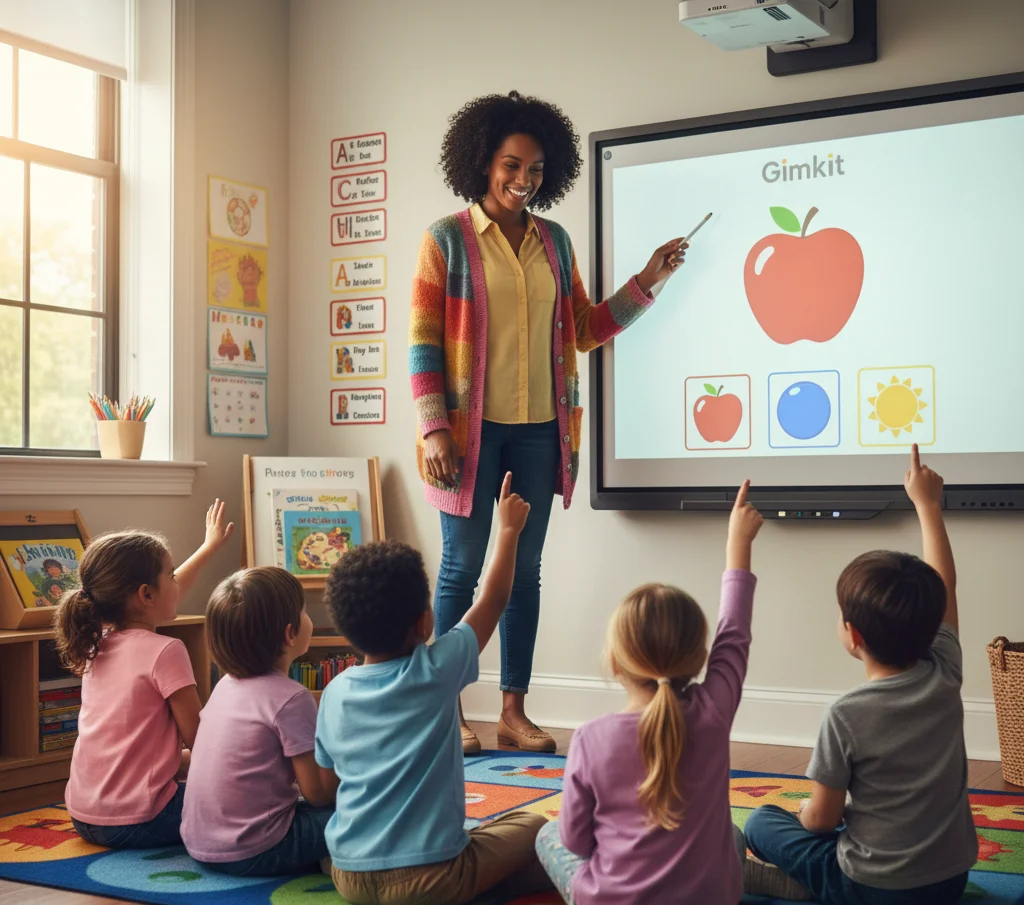
Modification: Design every single question and answer using clear, high-contrast images. For example, use a picture of a red apple for the prompt, and answer choices should be simple images of a red apple, a blue ball, and a yellow sun.
-
Implementation Note: Always use simple, uncluttered images. Avoid busy backgrounds that could confuse the learner, ensuring the activity remains developmentally appropriate.
2. Repetition and Reinforcement for Early Learning
Young children learn new concepts—like letters, numbers, and shapes—through repeated exposure. Gimkit, even in a modified setting, offers excellent structured practice.
-
Why it Works: By structuring your kits around a single concept (e.g., the letter ‘B’ or the number ‘5’), students see the correct visual or hear the correct sound multiple times throughout the short game session. This is a form of spaced practice, which research shows significantly improves retention over time compared to massed practice.
-
Modification: Keep the kit focused on one core skill per session. Do not mix color recognition with number identification in the same 5-minute game.
3. Whole-Class Gameplay Led by Teachers
The chaotic, fast-paced nature of Gimkit modes is inappropriate for PreK-K independent use. Teacher-led instruction is non-negotiable for this age group.
-
Why it Works: Playing as a whole class allows the teacher to scaffold the activity—explaining the concept, guiding the response, and managing the pace. This creates a low-stakes environment where students can participate verbally without the frustration of navigating a device independently. This strategy also boosts student engagement.
-
Modification: Project the game onto an interactive whiteboard. The children sit on the floor and shout out the answer, while you control the pace and click the correct response.
6 Proven Activities for Preschool & Kindergarten
These activities repurpose Gimkit’s mechanics to reinforce fundamental early childhood concepts:
Activity 1: Color and Shape Recognition
-
Setup: Questions show a simple shape and color (e.g., a yellow star). Answer options are three differently colored or shaped objects.
-
Gameplay: Students shout out the name of the correct shape and color combination.
-
Best for: Mid-year Kindergarten (age 5-6).
Activity 2: Letter and Number Identification
-
Setup: Question shows a large letter (“B”) or number (“5”). Answer choices are pictures that represent the correct letter (e.g., a picture of a bee for ‘B’) or quantity (e.g., a picture of five apples for ‘5’).
-
Gameplay: Students identify the correct letter or quantity.
Activity 3: Picture Matching Games
-
Setup: Question shows a photo of an object (e.g., a happy cat). Answer choices include the same image, a similar image, and a distractor (e.g., a grumpy bear).
-
Gameplay: Students practice basic visual discrimination by matching the images.
Activity 4: Simple Sequencing with Visual Cues
-
Setup: Question shows one step in a routine (e.g., putting on socks). Answer choices show the next logical step (e.g., putting on shoes) along with distractors (e.g., putting on a hat).
-
Gameplay: This helps reinforce understanding of routines and order.
Activity 5: Sound Recognition
-
Setup: Use the audio feature (if available) or play a sound effect separately (e.g., a cow saying “Moo!”). The question shows pictures of animals.
-
Gameplay: Students match the sound they hear to the correct image, reinforcing auditory discrimination.
Activity 6: Daily Routine Sequencing
-
Setup: Show a picture of a task (e.g., brushing teeth). Answer choices show the location where the task is completed (e.g., the sink).
-
Gameplay: This links actions to locations, improving vocabulary and context awareness.
How to Set Up Gimkit for Your PreK/Kindergarten Class
The most time-consuming part is creating the visual kit. Here is a realistic timeline:
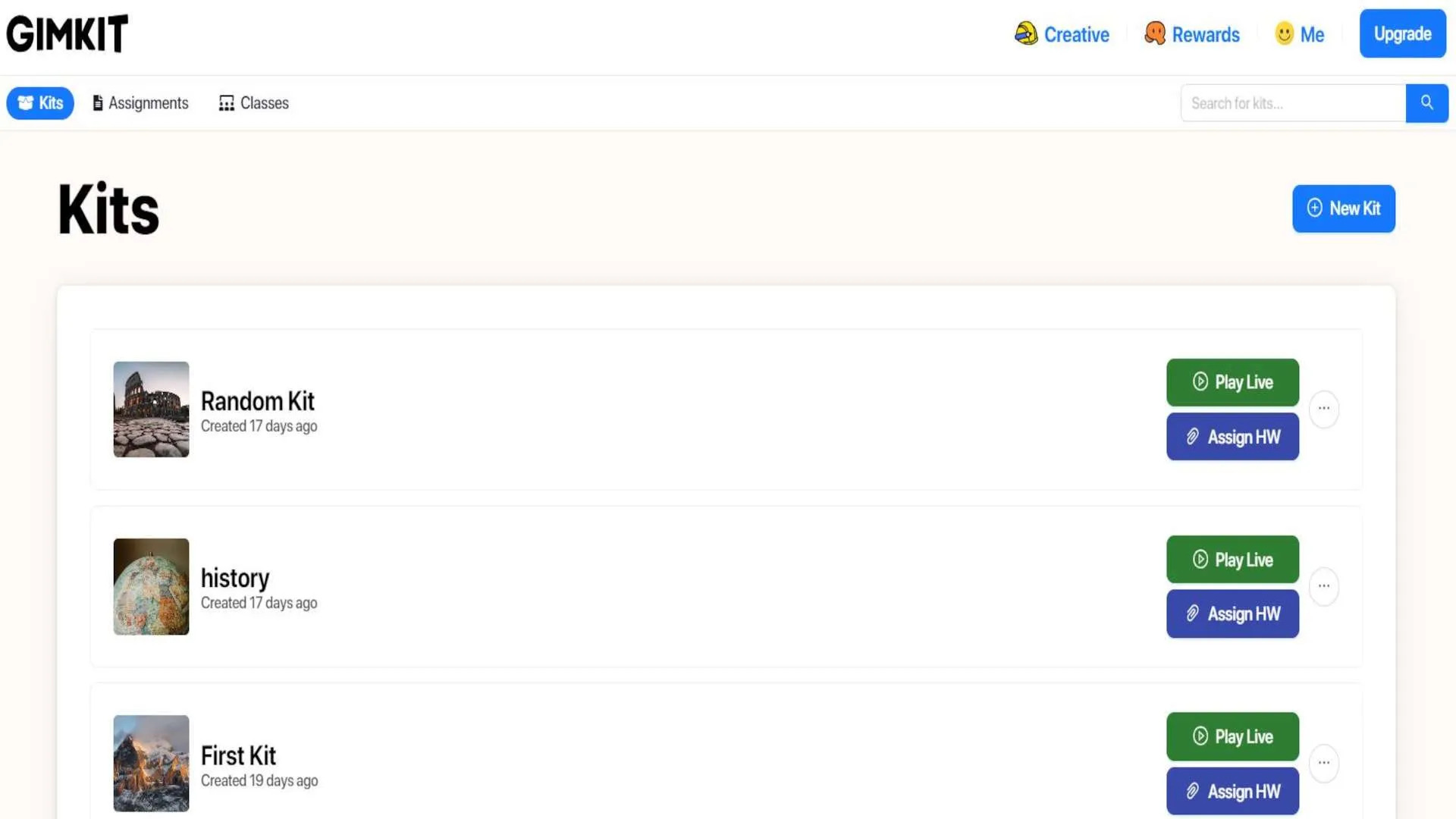
Step 1: Creating Your First Visual Kit
-
Log In: Access Gimkit and log into your teacher account.
-
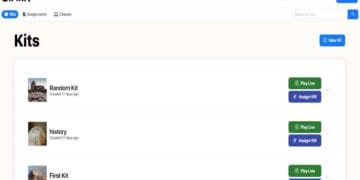
Create New Kit: Click “New Kit.” Title it clearly (e.g., “Shapes – Visual”). You are essentially learning how to transform classroom quizzes with Gimkit through visual content.
-
Add Images: Use free, child-appropriate image sources (like Pixabay or Flaticon) to download simple, high-contrast images. The process for uploading and customizing questions can be found in the Gimkit Help Center documentation.
-
Create Questions: For each question, use images for the prompt and all answer choices, minimizing text.
-
Time Investment: Expect to spend about 20–30 minutes creating a 10-15 question visual kit for the first time.
-
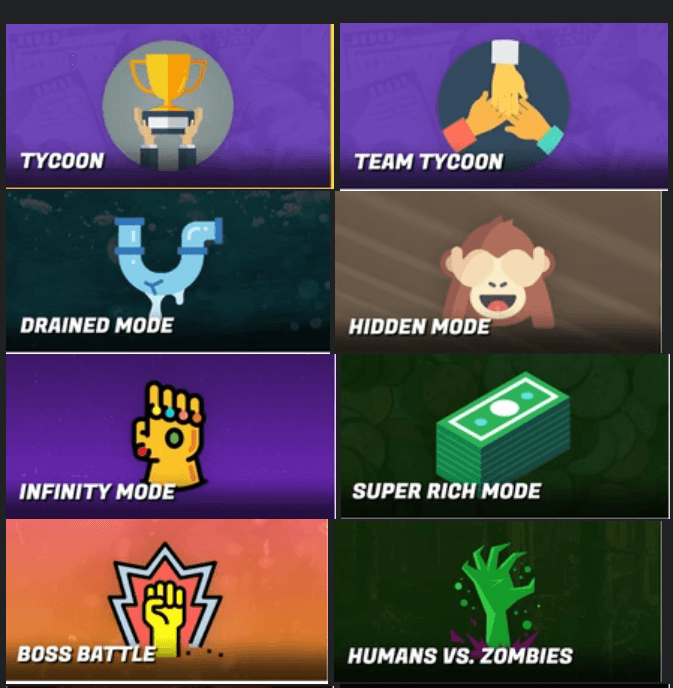
Step 2: Choosing the Right Game Mode
-
The Best Choice: Classic Mode. It is simple, teacher-controlled, and flexible. When exploring Gimkit’s game modes, Classic offers the most control.
-
Crucial Settings:
-
Disable Power-ups: Power-ups are distracting and irrelevant for this age group.
-
Set Time Limit: Keep the game short, ideally under 10 minutes for preschoolers.
-
Step 3: Managing Whole-Class Gameplay
-
Setup: Connect your computer to your projector or interactive whiteboard. Have all students sit where they can clearly see the screen.
-
Your Role: You are the designated “clicker.” When a question appears, give students a count (e.g., “1, 2, 3, shout!”) to answer simultaneously. You manage the game via the Gimkit dashboard and click the correct answer based on their verbal response.
Important Limitations and Considerations
Before bringing any digital tool into an early childhood setting, you must be aware of compliance and developmental issues. This is where your trustworthiness is proven.
1. Age Restrictions and COPPA Compliance
Gimkit is designed for students aged 13 and older. This is critical because of the Children’s Online Privacy Protection Act (COPPA), which restricts data collection from children under 13. While it can be adapted for elementary students, this requires caution, especially in Gimkit for elementary schools.
-
Teacher Must Control Account: Students must not create individual Gimkit accounts or log in.
-
Teacher-Led Gameplay Only: Use only the whole-class, teacher-controlled method described above.
-
Actionable Step: Check your school’s specific EdTech policy regarding children under 13 before implementing.
2. Developmental Appropriateness
-
Attention Span: Keep sessions very short (5-10 minutes max) to prevent engagement fatigue.
-
Fine Motor Skills: Since young children may struggle with independent mouse or keyboard use, the whole-class model is essential to prevent frustration.
3. Screen Time Balance
-
According to the American Academy of Pediatrics (AAP) guidelines on screen time, digital tools for preschoolers should be used in moderation and always with an educational purpose.
-
Gimkit should be a supplement—a fun, occasional review activity—not a primary daily learning tool. It is also wise to inform parents; you may find this Gimkit guide for parents helpful for communication.
Should You Actually Use Gimkit with Preschoolers? (Honest Evaluation)
Let me be completely honest: Gimkit wasn’t designed for this age group, and there are tools that require less modification to work effectively for early childhood education.
| When Gimkit Makes Sense for PreK-K | When Other Tools Are Better |
| You already have a Pro subscription for older students and need variety. | You are looking for your primary digital learning platform. |
| You need occasional review of foundational concepts (not daily use). | You need students to work independently on devices. |
| Your students respond well to whole-class, high-energy visual games. | You need a comprehensive curriculum designed for this age group (e.g., ABCmouse, Starfall). |
| You have time to create highly visual, simplified Kits. | Your school strictly limits screen time or digital tools for PreK/K. |
The Bottom Line: Gimkit for preschool can work as a fun, high-energy supplement for special occasions or thematic reviews. If you are starting from scratch, I’d recommend platforms purpose-built for early childhood first.
Frequently Asked Questions: Gimkit for Young Learners
Is Gimkit appropriate for preschool and kindergarten students?
Gimkit is designed for students age 13+, but teachers can adapt it for younger learners with significant modifications. The key is teacher-led gameplay using primarily visual questions. It is not appropriate for independent preschooler use due to developmental and compliance concerns.
What's the youngest age that can use Gimkit effectively?
Based on feedback from teachers, 4-year-old preschoolers can participate in heavily modified, teacher-led Gimkit games focused on simple visual recognition. Success depends heavily on the child's developmental readiness and your modification strategy.
Do preschoolers need to read to use Gimkit?
No. If you design your Kits using only images and minimize or eliminate text, you can create questions where both the prompt and all answer choices are pictures. This makes Gimkit accessible to pre-readers.
How long should a Gimkit session last for young children?
Keep sessions very short—5–10 minutes maximum for preschoolers, and 10–15 minutes for kindergarteners. Short sessions maintain better engagement than trying to play full-length games.
What are better alternatives to Gimkit for preschool?
Tools specifically designed for early childhood often work better than adapted middle-school platforms. Consider: ABCmouse, Starfall, or PBS Kids Games.