
















Welcome, fellow Gimkit Creative builders! If you’re tired of staring at the default grass and blue sky, you’re in the right place.
One of the first questions new map makers ask is: How to change the background in Gimkit Creative? It’s a trickier question than you might think! While you can’t just upload a picture from your computer (we’ll address that limitation later!), there are two powerful methods—one simple, one advanced—to completely customize the visual feel of your map.
We’ll walk through the easiest native option, and then dive into the secret builder trick using the barrier device to create stunning custom backdrops like night skies, deep space, or moody colors.
| Quick Look: Two Ways to Change Your Background |
| Method 1: The Easy Way |
| Method 2: The Pro Way |
Understanding Gimkit Creative Map Options: The Native Solution
The simplest way to swap out the entire base background is through the Map Options menu. This changes the fundamental Gimkit terrain background that covers your entire canvas.
The Background Terrain Picker: Quick Fix
- Open the Map Options: Click the Settings (⚙️) icon in the top toolbar.
- Select Map Options: Choose the Map Options tab (usually the second tab).
- Find Background Terrain: Look for the dropdown menu labeled Background Terrain.
- Choose Your Type: Select your desired background terrain type. Options usually include Grass, Sand, Snow, Water, or Cave Rock.
Limitations of Terrain-Only Backgrounds
While fast, this method only gives you basic, game-standard tiles. You can’t achieve a deep space look, a specific color mood, or dynamic changes using terrain alone. If you want a black background or a sunset theme, you need the advanced technique.
The Pro Builder’s Trick: Using the Barrier Device
This is the most common community-sourced workaround for map makers who want a truly custom feel, perfect for a platformer background, Gimkit map, or a complex top-down design. We are going to turn the Barrier device into a giant, non-colliding sheet of color.
Barrier Setup for a Custom Backdrop
 The key to this method is manipulating three settings on the barrier to make it look like a background, not a wall.
Step 1: Place and Resize the Barrier
- Place a barrier device on your map.
- Resize it manually using the white circles until it covers the entire area you want to have a custom background. You may need multiple barriers for very large maps.
Step 2: Set Non-Collision and Layering
This is the most crucial step—it ensures the barrier doesn’t block your player or your map elements.
- Collision: In the Barrier’s settings, find the Collision property and set it to Off. This is what makes it a non-collision barrier, allowing players and objects to pass right through it.
- Visibility / Layer: Find the Layer setting. Change this from the default to Behind Player (or similar “behind” option). This ensures your character, props, and active devices are always visible in front of your new backdrop. For detailed device properties, refer to the Gimkit Creative documentation on device settings. This is how you layer props behind the player in Gimkit Creative to make a background.
Step 3: Color and Transparency (Alpha)
Now you apply the look!
- Color: Pick the desired background color (e.g., deep blue for night, dark purple for space).
- Alpha (Transparency): This is where the magic happens. Alpha (Transparency) ranges from 0.0 (fully transparent) to 1.0 (fully solid).
- Pro Tip: For a simple black sky or solid mood, use Alpha 1.0. If you want a subtle tint over the native terrain or light to filter through, try values between 0.5 and 0.8.
Example Barrier Setups for Themes
| Theme | Barrier Color | Alpha Setting | Effect |
| Night Sky | Black or Deep Navy | 1.0 (Solid) | How to make a black background in the Gimkit Creative Platformer |
| Foggy Scene | Light Gray / White | 0.5 (Semi-Transparent) | Applies a misty filter over all map objects. |
| Space | Black / Dark Purple | 1.0 (Solid) | Perfect canvas for placing small, bright “star” props behind the player. |
Adding Depth with Props & Decoration
A truly great map uses depth. Once you have the Gimkit creative barrier background in place, you can add details that appear far away.
Using Props Behind the Player Layer
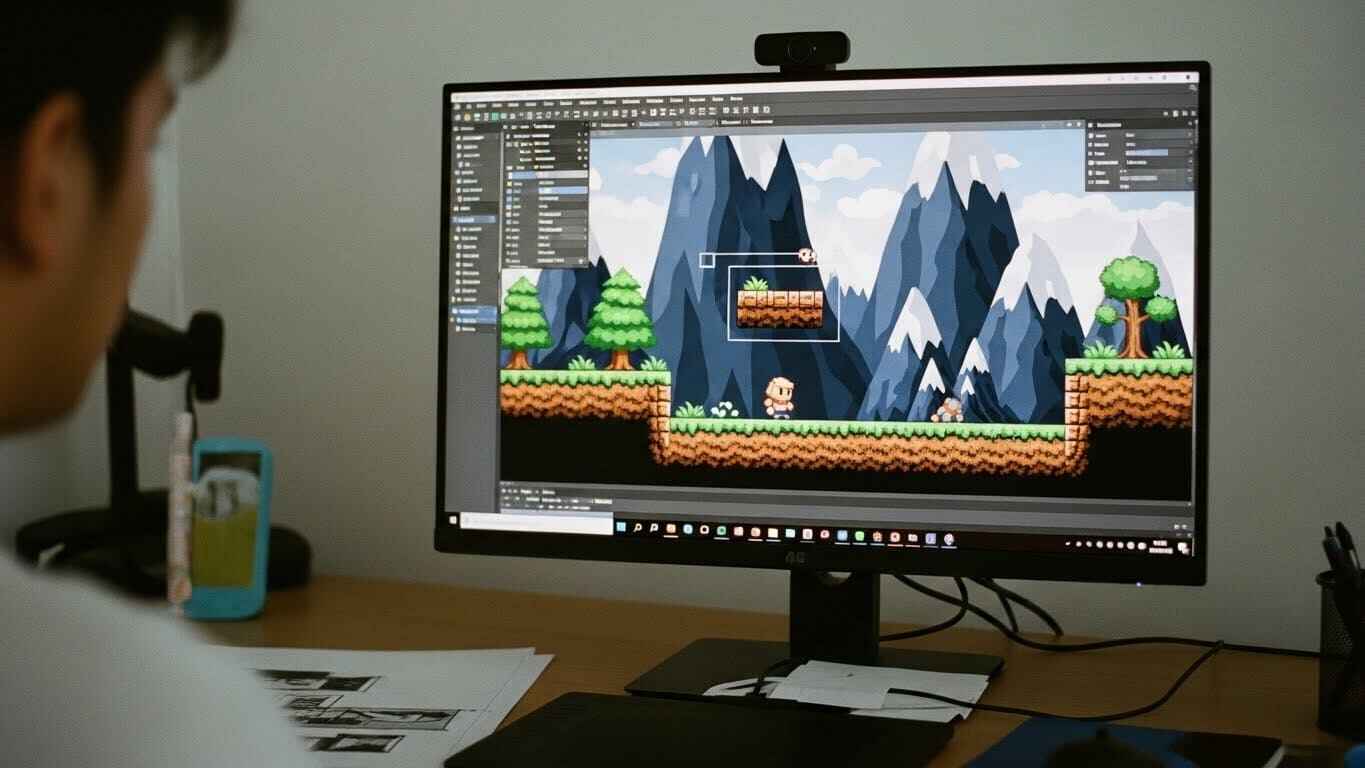 Just like the barrier, you can place decorative props in the Behind Player layer.
- Place props (like trees, mountains, or giant stars).
- In the prop settings, change the Layer to Behind Player.
- Scaling and Coloring: To simulate extreme distance, make the prop smaller and slightly darker or less saturated than foreground elements. This tricks the eye into seeing it as part of the platformer map decoration.
Limitations & Troubleshooting
It’s important to be honest about what Gimkit Creative can and cannot do right now. This addresses high-intent long-tail questions like “Can you upload a custom background in Gimkit Creative?”
What is Not Possible (Yet)
The Custom Image Question
No, you cannot currently upload a custom image background in Gimkit Creative. The feature is not supported at this time. All custom backdrops must be built using the native coloring tools and devices like the Barrier. If you’re encountering other unexpected bugs or issues while building, you might find our guide on Gimkit not loading solutions helpful. You can always check the Gimkit Creative documentation for the latest feature updates.
Multiple Terrain Types
You generally cannot have different background terrain Gimkit types in different areas of your map (e.g., snow on the left, sand on the right). However, this limitation is solved by the Barrier trick—you can use different colored barriers to simulate different environments.
Troubleshooting Common Barrier Issues
- “Why can’t I change the background in Gimkit Creative?” (i.e., Why is my barrier not working?): Check the Barrier’s Layer setting. It must be set to Behind Player. If it’s on the Front Layer, it might block light or cover up elements you wanted to keep.
- “The barrier is blocking my player!”: You forgot Step 2! Go into the barrier settings and make sure Collision is set to Off.
Best Practices & Design Tips
As an experienced builder, I learned that a smart approach saves memory and makes your map run smoother.
Use Terrain Wisely to Save Memory
 For huge, solid-color areas (like a black sky stretching across a massive map), it’s better to set the entire background terrain Gimkit to a dark color if possible, and use barriers only for subtle tints or specific zones. Filling large areas with many barriers can increase memory considerations and cause lag. To ensure your game runs smoothly for all players, especially those on older devices, check out our tips for fixing lag issues in Gimkit.
Advanced: Dynamic Backgrounds with Zones
 For advanced map creators, you can wire a Zone device to a Barrier device to create a dynamic background. When the player enters a zone (e.g., “The Underwater Zone”), the zone can be wired to activate a blue, semi-transparent barrier and deactivate a light blue barrier, effectively changing the background mid-game. This advanced technique is part of using devices like the Zone device for game logic and triggers.
Final Verdict & Next Steps
You now have the tools to completely transform your map’s visual identity. Remember the two key takeaways: use Map Options for the easiest base color, and use the Barrier device in the Behind Layer with Collision Off for a true custom theme.
Now go build something amazing!
Your Next Step: Ready to start building? Learn about the powerful tools available in the editor by reading our comprehensive guide on Gimkit’s Interactive Features and devices!
Frequently Asked Questions (FAQs)
1. Can I upload my own images for the background?
No. As of now, Gimkit Creative does not support uploading custom images for use as a background, terrain, or prop. The only way to create a unique look is by using the native coloring tools and devices like the Barrier.
2. Is there a way to have different backgrounds in different zones of the map?
Yes, but not with the native terrain picker. The pro solution is to use the Barrier device along with a Zone device. You can wire the Zone to activate a specific colored barrier (e.g., a red filter) when the player enters the area, effectively changing the background only within that zone.
3. Does using barriers for background slow down the game or use too much memory?
Yes, it can. If you cover a massive map with hundreds of small barriers or use highly detailed Gimkit creative barrier background art, it can contribute to lag. For maximum performance, use the native Background Terrain picker for large areas, and use the Barrier method sparingly for unique areas or color tints
4. What alpha value should I use for a night sky?
For a true, solid dark night sky, you should set the barrier color to Black or Deep Navy and the Alpha value to 1.0 (fully opaque). Many creators use this for a solid dark look that contrasts well with bright star props.